
Insight
Will Chrome Scare Visitors Away From Your Website? The New 'Not Secure' Warning Explained
Chrome now warns people before opening websites without HTTPS. Here's who is affected, what visitors see, and how to check your site.
The short version
- Google Chrome is turning on a setting called "Always Use Secure Connections" for everyone. Google planned this for Chrome 154, released in October 2026.
- If a public website doesn't support HTTPS (the padlock, encrypted version of the web), Chrome shows a full-page warning before it opens.
- Most modern sites are fine. The risk is in old pages, forgotten subdomains, old links in emails and QR codes, and badly set-up redirects.
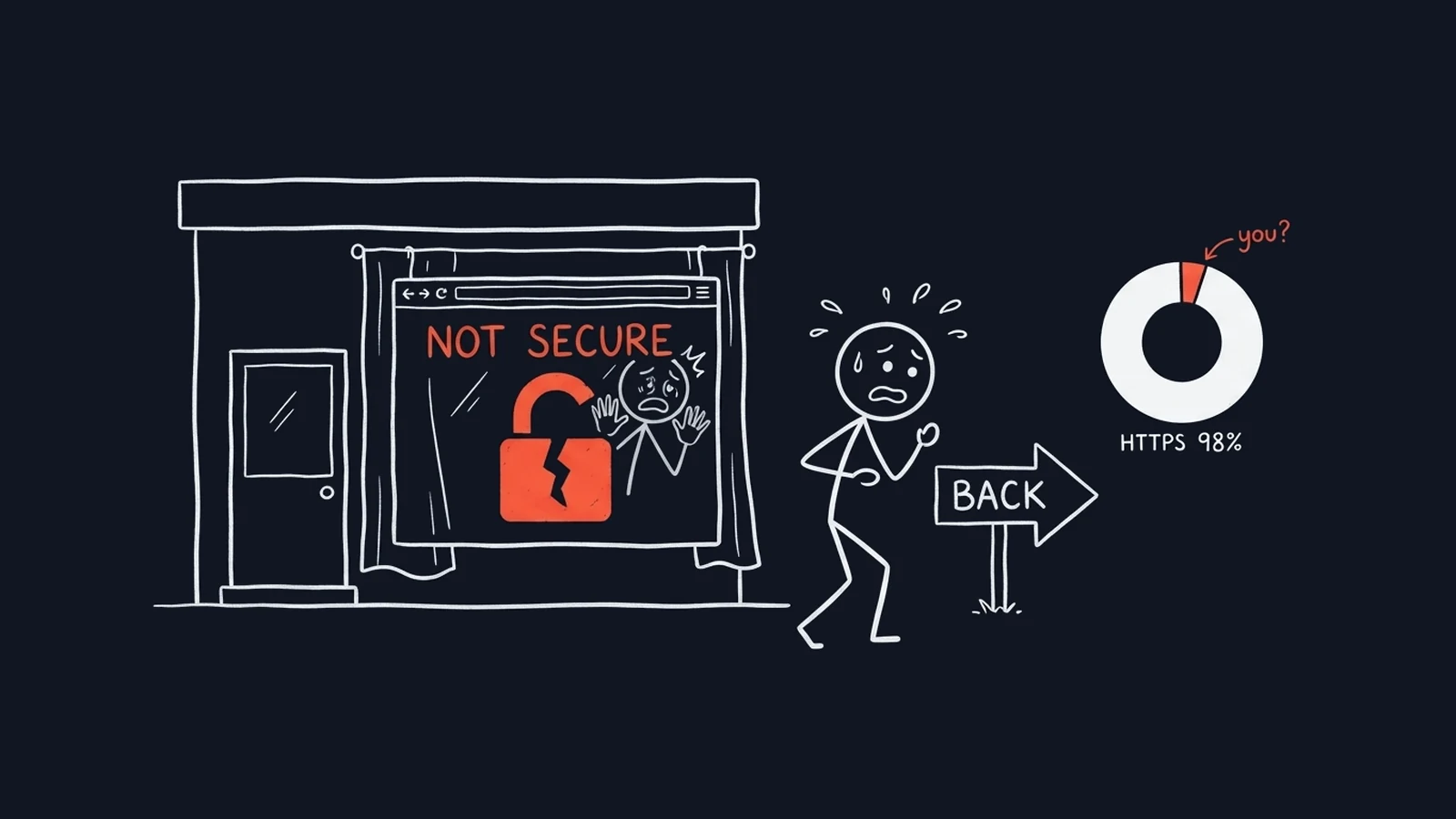
- One full-page warning can be enough to make a potential customer click "Back".
- Checking takes minutes: switch the setting on in your own Chrome and click through your site and links.
What's happening
HTTPS is the secure version of the web. It's what puts the little padlock next to a web address, and it means information sent between a visitor and your site is encrypted, so others can't read or change it on the way.
Back in October 2025, Google's Chrome security team announced a plan to make HTTPS the default:
- Chrome 147 (April 2026): the setting switched on for the more than one billion people who use Chrome's "Enhanced Safe Browsing" mode.
- Chrome 154 (October 2026): the setting switched on by default for all users.
Chrome 154 reached the stable channel on October 1, 2026, and updates roll out over days or weeks. One caution: a WindowsForum report from October 3 says Google's enterprise release notes now list Chrome 155 as the version that makes it the default. Either way, this is happening now or within weeks, not years.
What visitors see. Chrome first tries to load the secure HTTPS version of a page. If that works, nothing changes, even if the link was typed as "http://". If the site has no working HTTPS, Chrome shows a full-page warning saying the connection isn't secure and that attackers could see or change information. The visitor has to choose "Continue to site" or "Return".
How often. Google says Chrome won't keep warning about sites someone visits regularly. In its test, warnings appeared on less than 3% of page visits. The typical user would see fewer than one warning a week.
Who is excluded. By default, this covers public websites only. Router pages, office devices on your local network and internal company shortcuts aren't affected unless a user chooses a stricter setting.
Scale. Google says HTTPS use for public sites is already very high, around 98% on Windows and over 99% on Android and Mac. The remaining unsecured pages are a small share, but if one of them is yours, it matters to you.
What people are saying
Old links are the hidden risk
Website monitoring company Semonto argued that the biggest problems aren't main websites but forgotten addresses: old campaign domains, subdomains and download links. Its example: an old "http://" address that redirects to your secure site can still trigger a warning if that old address can't load securely itself.
Google's own advice: test now
In its announcement, Google strongly recommended that site owners turn the setting on themselves to find problems before customers do. It also said it had contacted the companies responsible for the most unsecured traffic.
Version confusion
Most coverage, including Search Engine Journal and BleepingComputer, reported Chrome 154 as the switch-over point. WindowsForum noted the release notes now point to 155, and also mentioned that Chrome has changed how often it releases. For site owners, the exact version number matters less than the fact that the warning is arriving.
Check the basics too
UK agency Weightman Digital and Semonto both recommended checking "mixed content" (secure pages that still load images or scripts over insecure connections) and insecure download links. Those don't trigger this specific warning, but they can break the padlock or features on your site.
Watch
For a short overview of the change, see Google Chrome will enforce HTTPS connections in October 2026 (YouTube).
What this means for your business
Here's our take.
1. If your main site already shows a padlock, you're probably fine, but "probably" isn't good enough. Most problems we see are in the corners: a booking page on an old subdomain, a landing page from a 2019 campaign, or a PDF menu hosted somewhere else.
2. Printed materials are a sneaky risk. Flyers, business cards, vehicle wraps and QR codes printed years ago may point to "http://" addresses. You can't update the print, but you can make sure those addresses still work securely and redirect cleanly.
3. A scary warning costs you customers, not just rankings. Most visitors won't read the details. They'll see a full-page warning and leave, perhaps to a competitor. For a small business, trust is everything.
4. Old websites are the real red flag. If your site runs on outdated software or an expired security certificate, this warning is just the most visible symptom. It's often a sign that the site needs broader maintenance or a rebuild.
5. This is a cheap fix compared with the cost of ignoring it. Free security certificates have been widely available for years. For most sites, fixing this is an hour or two of technical work, not a big project.
What to do this month
- Turn the setting on in your own Chrome. Go to Settings, then Privacy and security, then Security, and switch on "Always use secure connections".
- Click through your own site. Visit your homepage, contact page, booking or checkout pages, and any subdomains like shop. or book. Note any warnings.
- Test your old links. Try the addresses printed on your cards, flyers, QR codes and email signatures, especially ones starting with "http://".
- Check your security certificate. Ask your web host or developer when it expires and whether it renews automatically.
- Ask for clean redirects. Every "http://" address you own should send visitors straight to the matching "https://" page in one step.
- Update links you control. Fix "http://" links in your email templates, social profiles, Google Business Profile and directory listings.
Want us to check your website for you?
We'll test your website, subdomains and key links with Chrome's new setting switched on, check your security certificate and redirects, and send you a plain-English list of anything that needs fixing. It's a free website security check, with no jargon.
Request your free website check.
Sources
- Google: HTTPS by default
- Search Engine Journal: Chrome To Warn Users Before Loading HTTP Sites Starting Next Year
- BleepingComputer: Google Chrome to warn users before opening insecure HTTP sites
- PPC Land: Chrome enforces secure connections by default in October 2026
- Semonto: Chrome 154 will ask before HTTP: audit your forgotten URLs now
- WindowsForum: Chrome 154 or 155: When HTTPS-First Warnings Become Default and How to Manage Them
- Weightman Digital: Chrome HTTPS Warning From October 2026: Check Your Site